> ## Documentation Index
> Fetch the complete documentation index at: https://docs.getlago.com/llms.txt
> Use this file to discover all available pages before exploring further.
# Overview
**PREMIUM FEATURE** ✨
Lago may automatically generate a credit note when a subscription is upgraded or
downgraded. However, only users with a premium license can manually generate
credit notes via the user interface or the API. Please
**[contact us](mailto:hello@getlago.com)** to get access to Lago Cloud and Lago
Self-Hosted Premium.
Use credit notes to correct an invoice while keeping your financial records accurate.
Credit notes can be issued for **all invoice types**.
## Access credit notes creation flow[](#create-credit-notes "Direct link to heading")
Credit notes can only be issued for invoices with status `finalized` and an amount **greater than zero**.
To create a credit note from the Dashboard:
1. Open the invoice
2. Go to the **Credit notes** tab
3. Click **Issue a credit note**
The available methods depend on the payments recorded on the invoice:
* Credit the full invoice amount (tax included) for future use
* Refund the paid amount
* Offset the remaining invoice amount due
For **subscription invoices**, prepaid credits and applied credit notes cannot be refunded.
They can only be credited back to the customer’s account for future use.
Coupons are non-refundable and cannot be credited back.
### Prepaid credit invoices
Prepaid credit invoices follow specific rules:
* **If a payment is recorded:** You can refund the available wallet balance. This immediately voids the credits from the wallet.
* **If no payment is recorded:** You can only offset the invoice. The wallet transaction is not settled and the wallet balance remains unchanged.
## Issue a credit note
1. Select a reason from the list (e.g. duplicate charge, order cancelation,
etc.);
2. Add an internal note (optional);
3. Select the item(s) and enter the amount(s) you want to credit;
4. Select the credit method(s) (only available for paid invoices -
[learn more](#credit-methods)); and
5. Click **"Issue credit note"** to confirm.
For each item, you must enter a credit amount equal to or less than the
initial amount of the item, excluding tax. The total amount of the credit note
cannot exceed the total amount of the invoice.
```bash Create a credit note theme={"dark"}
LAGO_URL="https://api.getlago.com"
API_KEY="__YOUR_API_KEY__"
curl --location --request POST "$LAGO_URL/api/v1/credit_notes" \
--header "Authorization: Bearer $API_KEY" \
--header 'Content-Type: application/json' \
--data-raw '{
"credit_note": {
"invoice_id": "**LAGO_INVOICE_ID**",
"reason": "duplicated_charge",
"credit_amount_cents": 10,
"refund_amount_cents": 5,
"offset_amount_cents": 0,
"items": [
{
"fee_id": "__LAGO_FEE_ID__",
"amount_cents": 10
},
{
"fee_id": "__LAGO_FEE_ID__",
"amount_cents": 5
}
]
}
}'
```
Once created, the credit note:
* Appears in the Credit notes tab of the customer and invoice views
* Triggers a `credit_note.created` [webhook](/api-reference/webhooks/messages)
You can issue **multiple credit notes** on a single invoice.
Each credit note has a unique number and can be downloaded as a PDF.
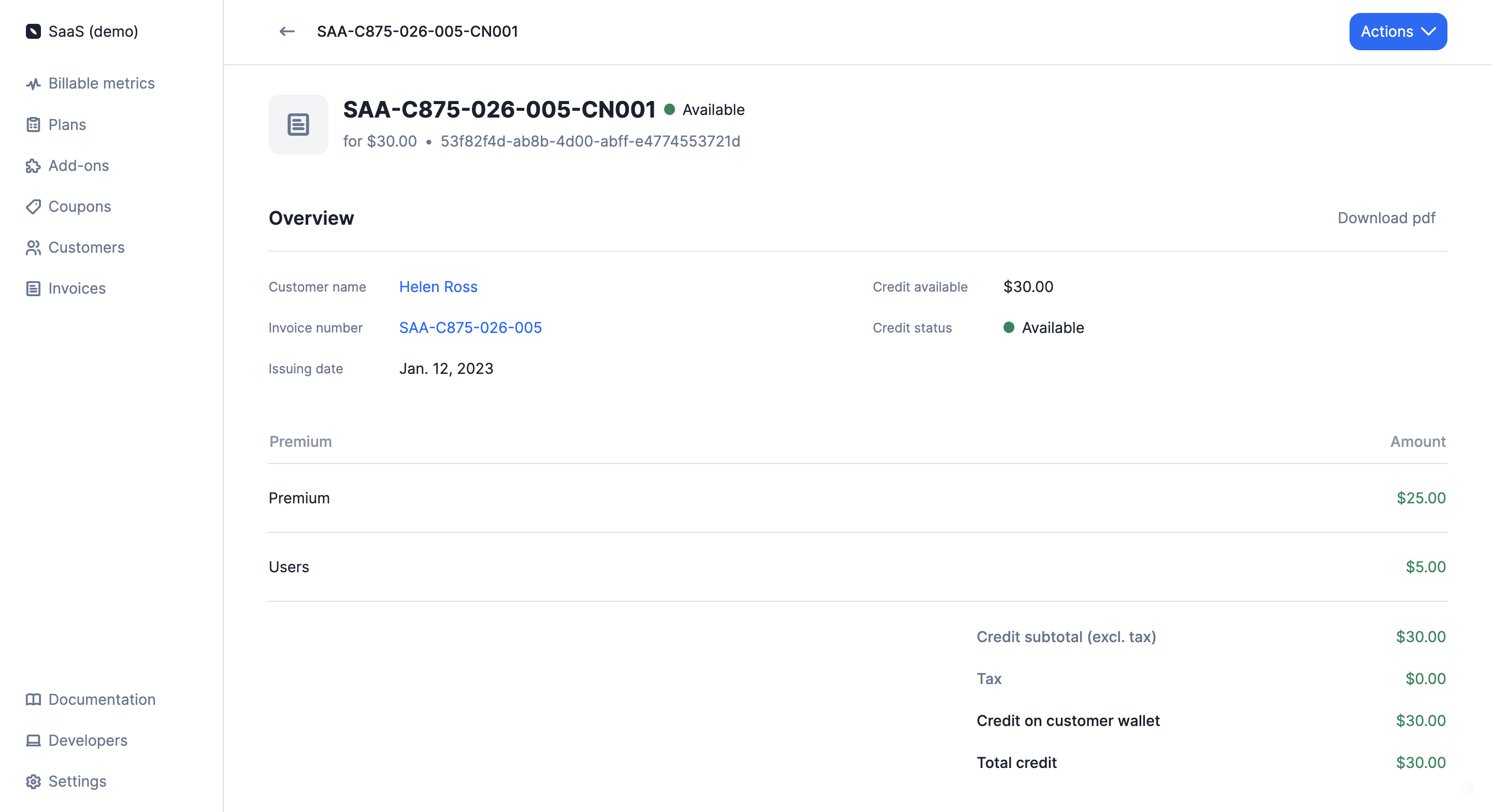 ## Credit methods[](#credit-methods "Direct link to heading")
### Offset[](#offset "Direct link to heading")
If the invoice has an amount due greater than zero, you can offset it.
This reduces the invoice amount due. Once it reaches zero, Lago automatically marks `invoice.payment_status` as `succeeded`.
### Refund[](#refund "Direct link to heading")
If a payment has been recorded, you can refund the paid amount.
* If the customer is connected to a payment provider, Lago automatically triggers the refund.
* The credit note includes a `refund_status`, updated to `pending`, `succeeded`, or `failed`.
If no payment provider is connected, refund handling and `refund_status` updates are the user’s responsibility.
### Credit note wallet[](#credit-note-wallet "Direct link to heading")
You can credit an amount for future use instead of refunding it.
The credited amount is stored in a single credit note wallet and visible in the customer’s Credit notes tab.
This balance is automatically applied to future subscription invoices.
Credit note wallets are different from wallets associated with [prepaid credits](/guide/wallet-and-prepaid-credits).
The total amount available in the credit note wallets will be deducted from the
subtotal of the customer's next invoice(s), after tax (see below).
```
## EXAMPLE OF INVOICE
All subscriptions fee $50.00
All usage-based fees $20.00
Coupons -$10.00
-------------------------------
Subtotal (excl. tax) $60.00
Tax (10%) $ 6.00
-------------------------------
Subtotal (incl. tax) $66.00
Credit notes $20.00
Prepaid credits $30.00
-------------------------------
Total $16.00
```
When a credit note wallet is created, its initial `credit_status` is set to `available`.
Once the wallet balance reaches zero, the status automatically changes to consumed.
## Void available credit[](#void-credit-note "Direct link to heading")
You can still void any remaining credit linked to a specific credit note when needed. To do so:
1. Go to the **"Customers"** section;
2. Select a customer to open the customer view;
3. Open the **"Credit notes"** tab;
4. Click a credit note to see its details; and
5. Select **"Void credit available"** from the **"Actions"** dropdown (upper
right corner).
When voiding a credit note wallet, the remaining credit amount will be lost
and the `credit_status` will switch to `voided`. This action cannot be
canceled.
```bash Void a credit note theme={"dark"}
LAGO_URL="https://api.getlago.com"
CREDIT_NOTE_ID="__YOU_CREDIT_NOTE_ID__"
API_KEY="__YOUR_API_KEY__"
curl --location --request PUT "$LAGO_URL/api/v1/credit_notes/$CREDIT_NOTE_ID/void" \
--header "Authorization: Bearer $API_KEY" \
--header 'Content-Type: application/json'
```
## Credit methods[](#credit-methods "Direct link to heading")
### Offset[](#offset "Direct link to heading")
If the invoice has an amount due greater than zero, you can offset it.
This reduces the invoice amount due. Once it reaches zero, Lago automatically marks `invoice.payment_status` as `succeeded`.
### Refund[](#refund "Direct link to heading")
If a payment has been recorded, you can refund the paid amount.
* If the customer is connected to a payment provider, Lago automatically triggers the refund.
* The credit note includes a `refund_status`, updated to `pending`, `succeeded`, or `failed`.
If no payment provider is connected, refund handling and `refund_status` updates are the user’s responsibility.
### Credit note wallet[](#credit-note-wallet "Direct link to heading")
You can credit an amount for future use instead of refunding it.
The credited amount is stored in a single credit note wallet and visible in the customer’s Credit notes tab.
This balance is automatically applied to future subscription invoices.
Credit note wallets are different from wallets associated with [prepaid credits](/guide/wallet-and-prepaid-credits).
The total amount available in the credit note wallets will be deducted from the
subtotal of the customer's next invoice(s), after tax (see below).
```
## EXAMPLE OF INVOICE
All subscriptions fee $50.00
All usage-based fees $20.00
Coupons -$10.00
-------------------------------
Subtotal (excl. tax) $60.00
Tax (10%) $ 6.00
-------------------------------
Subtotal (incl. tax) $66.00
Credit notes $20.00
Prepaid credits $30.00
-------------------------------
Total $16.00
```
When a credit note wallet is created, its initial `credit_status` is set to `available`.
Once the wallet balance reaches zero, the status automatically changes to consumed.
## Void available credit[](#void-credit-note "Direct link to heading")
You can still void any remaining credit linked to a specific credit note when needed. To do so:
1. Go to the **"Customers"** section;
2. Select a customer to open the customer view;
3. Open the **"Credit notes"** tab;
4. Click a credit note to see its details; and
5. Select **"Void credit available"** from the **"Actions"** dropdown (upper
right corner).
When voiding a credit note wallet, the remaining credit amount will be lost
and the `credit_status` will switch to `voided`. This action cannot be
canceled.
```bash Void a credit note theme={"dark"}
LAGO_URL="https://api.getlago.com"
CREDIT_NOTE_ID="__YOU_CREDIT_NOTE_ID__"
API_KEY="__YOUR_API_KEY__"
curl --location --request PUT "$LAGO_URL/api/v1/credit_notes/$CREDIT_NOTE_ID/void" \
--header "Authorization: Bearer $API_KEY" \
--header 'Content-Type: application/json'
```