> ## Documentation Index
> Fetch the complete documentation index at: https://docs.getlago.com/llms.txt
> Use this file to discover all available pages before exploring further.
# Overview
> Define invoice look and feel per entity to match your requierement.
Invoicing settings impact a specific entity and all customers invoices linked to it.
### Add information about your entity
You can modify some of the elements that are included in the PDF invoice, such as information about the entity, its logo and footer.
To update your entity's information and logo:
1. Click **"Settings"** in the side menu;
2. In the **Billing entity** > **General information** section, click **"Edit"** in the **"Information"** block;
3. Choose a file to update the logo and fill out the form to update your entity's information; and
4. Click **"Save edits"** to confirm.
For the logo, you can upload a JPG or PNG file with a maximum size of 800 KB.
### Add a custom invoice section[](#add-custom-invoice-section "Direct link to heading")
A custom invoice section is an additional section displayed above the custom footer on an invoice.
It allows you to set a title and include specific details (e.g. bank details).
Custom invoice sections can be applied at the billing entity level, impacting all customer invoices attached to it, or set per customer for greater granularity.
To create an invoice custom section:
1. Click **"Settings"** in the side menu;
2. Open the **"Invoice section"** tab;
3. Click on **"Add"** in the **"Invoice custom section** block;
4. Provide the necessary details, including the title and content.
5. Click **Preview** to see how the section will appear on an invoice.
6. Apply this invoice custom section to a billing entity or a customer.
You can display multiple custom invoice sections on invoices. Note that they will be sorted alphabetically by the custom section name.
You can override the entity-level setting for specific customers by either assigning a different invoice custom section or deactivating the option for that customer. To do so:
1. Click on a specific customer;
2. Navigate to the **Settings** tab;
3. Click on **Edit** in the Invoice custom section;
4. Add a specific custom invoice section for the customer; or
5. Choose to deactivate the invoice custom section for this customer.
```bash Update the customer invoice custom section theme={"dark"}
LAGO_URL="https://api.getlago.com"
API_KEY="__YOUR_API_KEY__"
curl --location --request POST "$LAGO_URL/api/v1/customers" \
--header "Authorization: Bearer $API_KEY" \
--header 'Content-Type: application/json' \
--data-raw '{
"customer": {
…
"skip_invoice_custom_sections": false, // If true, no invoice custom sections will be applied to the customer
"invoice_custom_section_codes": ["eu_bank_details"] // Leave an empty array to use the billing entity-level settings
…
}
}'
```
Once the settings are updated, all newly finalized invoices for the billing entity or specific customer will reflect the changes.
### Add a custom footer
A custom footer is a universal footer applied to all invoices and credit notes across all customers.
It is typically used to display your company’s legal information or other standard details.
If you need granularity per customer, please refer to the **custom invoice section** above.
To update the footer of the invoice:
1. Click **Settings** in the side menu;
2. Open the **Billing entity** > **Invoicing settings** tab;
3. Click on **Edit** in the **Invoice default footer** block;
4. Enter your text (maximum 600 characters); and
5. Click **Save information** to confirm.
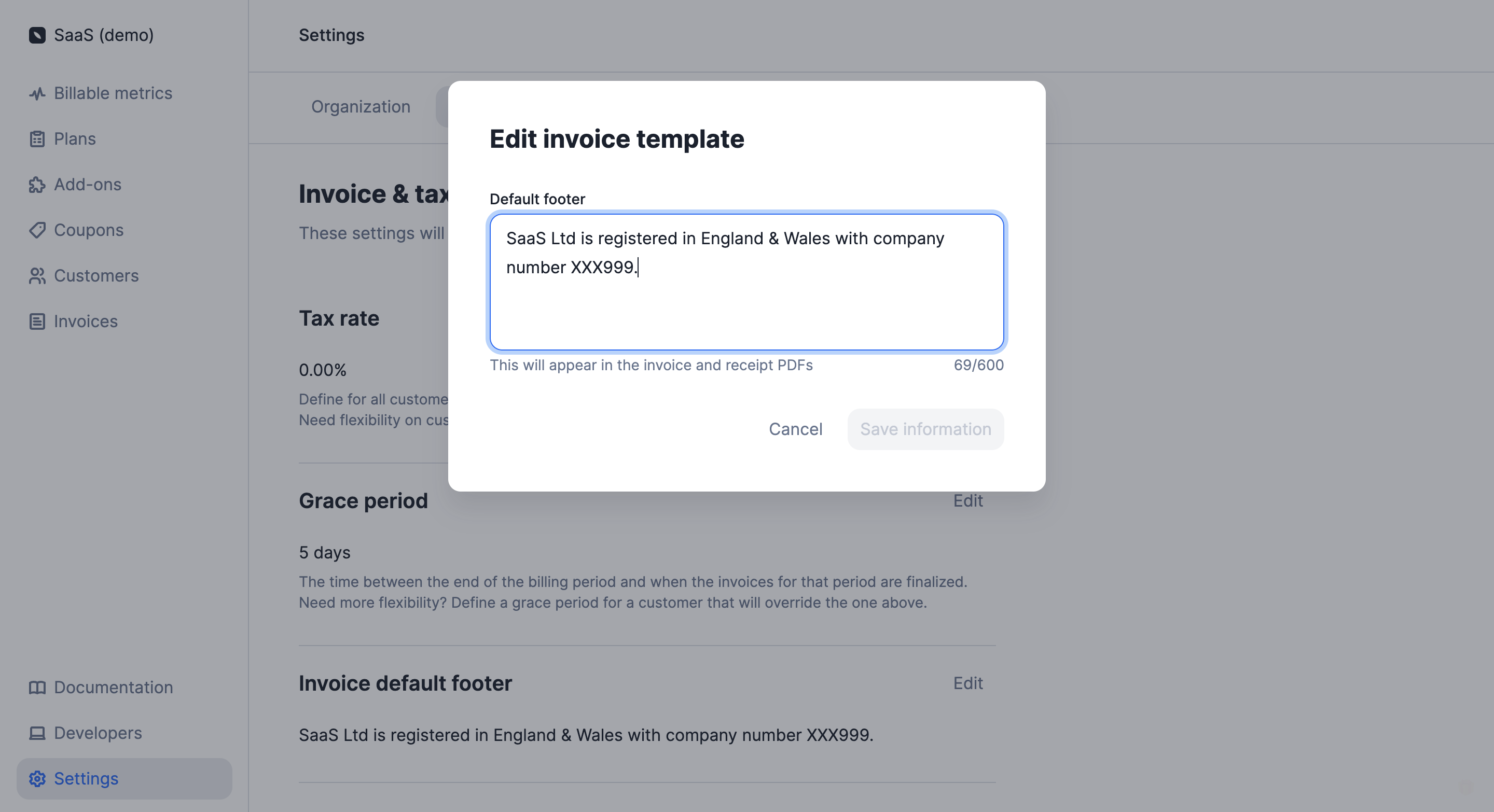 You can update the customer footer of invoices by changing the `invoice_footer` in your billing entity endpoint.
```bash Update the customer footer of your invoices theme={"dark"}
LAGO_URL="https://api.getlago.com"
API_KEY="__YOUR_API_KEY__"
curl --location --request PUT "$LAGO_URL/api/v1/billing_entities/{code}" \
--header "Authorization: Bearer $API_KEY" \
--header 'Content-Type: application/json' \
--data-raw '{
"billing_entity": {
…
"invoice_footer": "footer custom"
}
}'
```
### Translate invoices
To set the default language for documents:
1. Click **"Settings"** in the side menu;
2. Open the **Billing entity** > **Invoicing settings** tab;
3. Select **"Edit"** in the **"Document language"** block;
4. Select your preferred language from the list; and
5. Click **"Edit language"** to confirm.
The entity's default language can be overwritten by the customer's preferred language ([learn more](/guide/customers/invoice-customer#preferred-language)).
You can update the customer footer of invoices by changing the `document_locale` in the `billing_configuration` object of your billing entity endpoint.
```bash Update the documents locale theme={"dark"}
LAGO_URL="https://api.getlago.com"
API_KEY="__YOUR_API_KEY__"
curl --location --request PUT "$LAGO_URL/api/v1/billing_entities/{code}" \
--header "Authorization: Bearer $API_KEY" \
--header 'Content-Type: application/json' \
--data-raw '{
"billing_entity": {
…
"document_locale": "fr"
}
}'
```
Please refer to the API documentation to see the [list of supported languages](/api-reference/resources/locales).
You can update the customer footer of invoices by changing the `invoice_footer` in your billing entity endpoint.
```bash Update the customer footer of your invoices theme={"dark"}
LAGO_URL="https://api.getlago.com"
API_KEY="__YOUR_API_KEY__"
curl --location --request PUT "$LAGO_URL/api/v1/billing_entities/{code}" \
--header "Authorization: Bearer $API_KEY" \
--header 'Content-Type: application/json' \
--data-raw '{
"billing_entity": {
…
"invoice_footer": "footer custom"
}
}'
```
### Translate invoices
To set the default language for documents:
1. Click **"Settings"** in the side menu;
2. Open the **Billing entity** > **Invoicing settings** tab;
3. Select **"Edit"** in the **"Document language"** block;
4. Select your preferred language from the list; and
5. Click **"Edit language"** to confirm.
The entity's default language can be overwritten by the customer's preferred language ([learn more](/guide/customers/invoice-customer#preferred-language)).
You can update the customer footer of invoices by changing the `document_locale` in the `billing_configuration` object of your billing entity endpoint.
```bash Update the documents locale theme={"dark"}
LAGO_URL="https://api.getlago.com"
API_KEY="__YOUR_API_KEY__"
curl --location --request PUT "$LAGO_URL/api/v1/billing_entities/{code}" \
--header "Authorization: Bearer $API_KEY" \
--header 'Content-Type: application/json' \
--data-raw '{
"billing_entity": {
…
"document_locale": "fr"
}
}'
```
Please refer to the API documentation to see the [list of supported languages](/api-reference/resources/locales).