> ## Documentation Index
> Fetch the complete documentation index at: https://docs.getlago.com/llms.txt
> Use this file to discover all available pages before exploring further.
# Taxes
> When generating invoices, you may need to apply VAT or other taxes. By creating tax objects and applying them to billing entities and/or customers, the corresponding invoices will reflect the appropriate tax rates.
## External integration
Let your tax provider handle the complexity of tax logic! We support integrations that allow seamless tax automation.
If you'd like to explore these integrations or be connected to a provider, feel free to contact us.
}
href="/integrations/taxes/anrok"
>
Anrok is a global sales tax platform built for software companies.
Official
}
href="/integrations/taxes/avalara"
>
AvaTax is a cloud-based tax calculation and compliance platform that helps businesses manage their sales tax obligations.
Official
***
## Create taxes at the organization level
Before applying taxes to invoices, you need to create a tax object at the organization level. You can then assign it to billing entities or specific customers.
**To create a tax:**
1. Go to **Settings** > **Taxes** tab
2. Click **"Add"** (top-right corner)
3. Provide a `name`
4. Set a unique `code` (used as an identifier in your backend)
5. (Optional) Add a `description`
6. Define the applicable `rate` (e.g., 20.00 for 20%)
```bash theme={"dark"}
# Create a tax object
LAGO_URL="https://api.getlago.com"
API_KEY="__YOUR_API_KEY__"
curl --location --request POST "$LAGO_URL/api/v1/taxes" \
--header "Authorization: Bearer $API_KEY" \
--header 'Content-Type: application/json' \
--data-raw '{
"tax": {
"name": "French VAT",
"code": "french_vat",
"description": "French standard VAT",
"rate": 20.00
}
}'
```
***
## Edit or delete taxes
Taxes can be edited or deleted even if they are already applied to billing entities or customers. However, any change will affect all draft or upcoming invoices linked to that tax.
**Available actions:**
* **Edit**: Modify the tax name, code, or rate
* **Delete**: Remove the tax from your system (irreversible)
***
## Apply taxes to objects
When generating invoices, taxes can be applied at various levels and will impact all associated fees (subscriptions, usage-based charges, etc.).
***
### At the billing entity level
1. Go to **Settings** > Select your **Billing entity** > **Taxes** tab
2. Click **"Add"** to apply a tax
3. Choose the tax object
4. Repeat to apply multiple taxes
```bash theme={"dark"}
# Add taxes to a billing entity
curl --location --request PUT "$LAGO_URL/api/v1/billing_entities/{code}" \
--header "Authorization: Bearer $API_KEY" \
--header 'Content-Type: application/json' \
--data-raw '{
"billing_entity": {
"tax_codes": ["tax_fr", "tax_it"]
}
}'
```
***
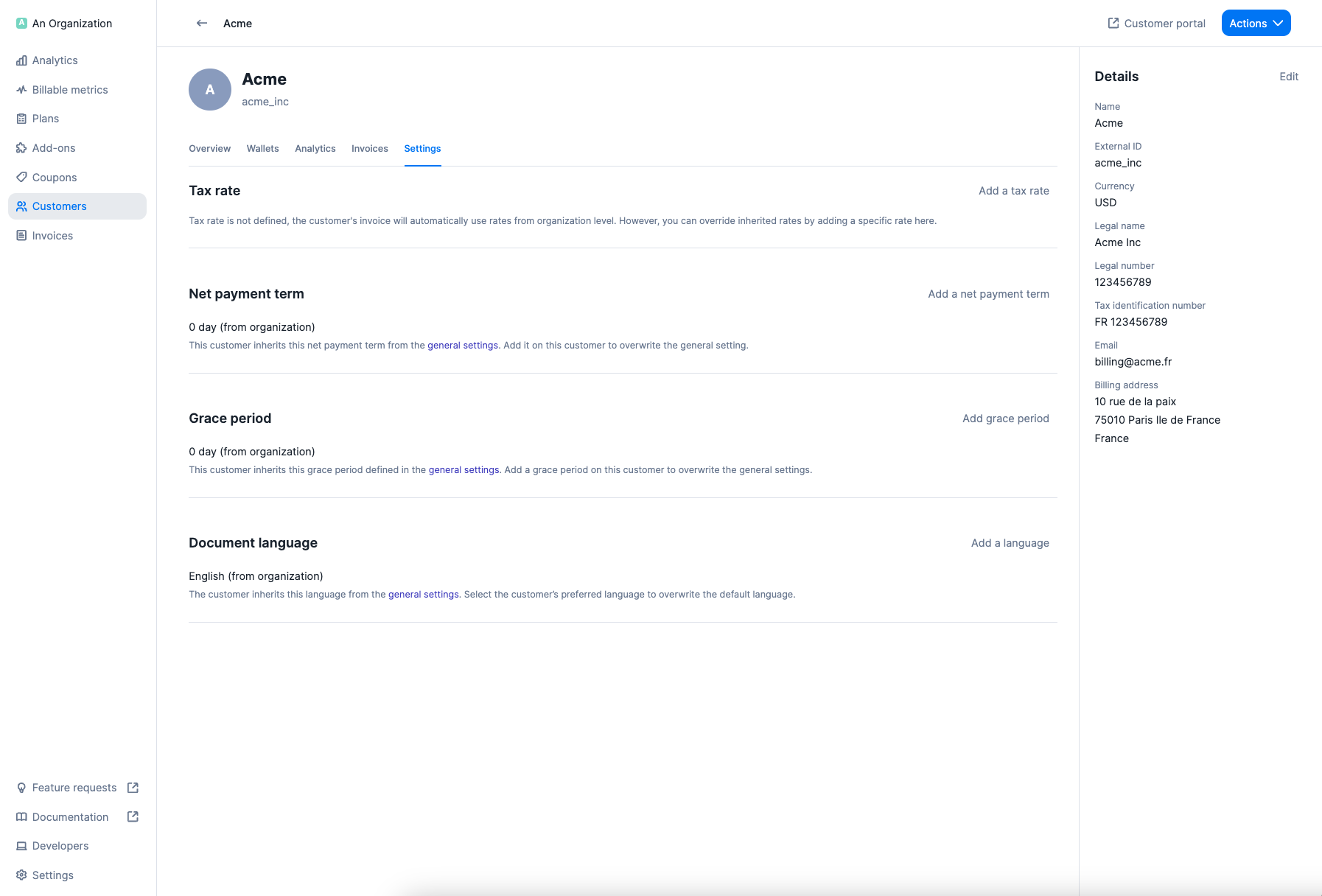
### At the customer level
1. Go to **Customer details** > **Settings**
2. Under **Tax rates**, click **"Add a tax"**
3. Select the appropriate tax
4. Repeat for multiple taxes
 ```bash theme={"dark"}
# Add taxes to a customer
curl --location --request PUT "$LAGO_URL/api/v1/customers" \
--header "Authorization: Bearer $API_KEY" \
--header 'Content-Type: application/json' \
--data-raw '{
"customer": {
"code": "acme_inc",
"tax_codes": ["tax_fr"]
}
}'
```
***
### At the plan and charge level
1. Ensure your tax objects are created
2. Navigate to **Plans** > **Add a plan**
3. In the plan settings, click **Add a tax rate**
4. For usage-based charges, expand **More options** and click **Add a tax rate**
5. Note: taxes set at the charge level override the plan-level taxes
6. Save and apply the plan to customers
```bash theme={"dark"}
# Add taxes to a customer
curl --location --request PUT "$LAGO_URL/api/v1/customers" \
--header "Authorization: Bearer $API_KEY" \
--header 'Content-Type: application/json' \
--data-raw '{
"customer": {
"code": "acme_inc",
"tax_codes": ["tax_fr"]
}
}'
```
***
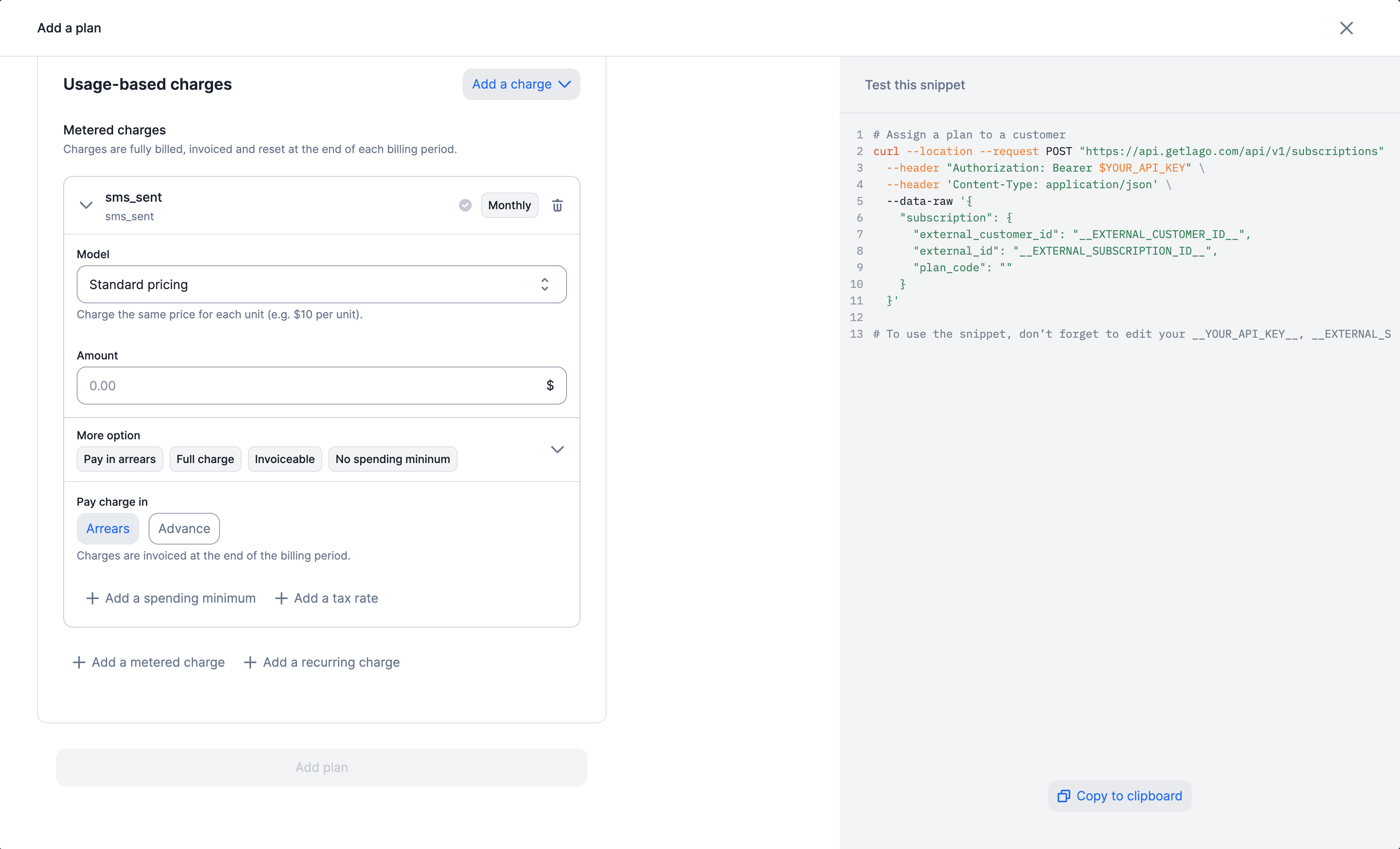
### At the plan and charge level
1. Ensure your tax objects are created
2. Navigate to **Plans** > **Add a plan**
3. In the plan settings, click **Add a tax rate**
4. For usage-based charges, expand **More options** and click **Add a tax rate**
5. Note: taxes set at the charge level override the plan-level taxes
6. Save and apply the plan to customers
 ```bash theme={"dark"}
# Add taxes to a plan and its charges
curl --location --request POST "$LAGO_URL/api/v1/plans" \
--header "Authorization: Bearer $API_KEY" \
--header 'Content-Type: application/json' \
--data-raw '{
"plan": {
"name": "Starter",
"code": "starter",
"interval": "monthly",
"amount_cents": 9900,
"amount_currency": "USD",
"tax_codes": ["french_standard_vat"],
"charges": [
{
"billable_metric_code": "user_seat",
"charge_model": "standard",
"invoiceable": true,
"pay_in_advance": false,
"prorated": false,
"min_amount_cents": 0,
"tax_codes": ["french_standard_vat"],
"properties": {
"amount": "0.10"
}
}
]
}
}'
```
***
### At the add-on level
1. Make sure taxes are set up in your account
2. Go to **Add-ons** > **Add an add-on**
3. In the add-on settings, click **Add a tax rate**
4. Complete creation and apply to customers via one-off invoices
```bash theme={"dark"}
# Add taxes to a plan and its charges
curl --location --request POST "$LAGO_URL/api/v1/plans" \
--header "Authorization: Bearer $API_KEY" \
--header 'Content-Type: application/json' \
--data-raw '{
"plan": {
"name": "Starter",
"code": "starter",
"interval": "monthly",
"amount_cents": 9900,
"amount_currency": "USD",
"tax_codes": ["french_standard_vat"],
"charges": [
{
"billable_metric_code": "user_seat",
"charge_model": "standard",
"invoiceable": true,
"pay_in_advance": false,
"prorated": false,
"min_amount_cents": 0,
"tax_codes": ["french_standard_vat"],
"properties": {
"amount": "0.10"
}
}
]
}
}'
```
***
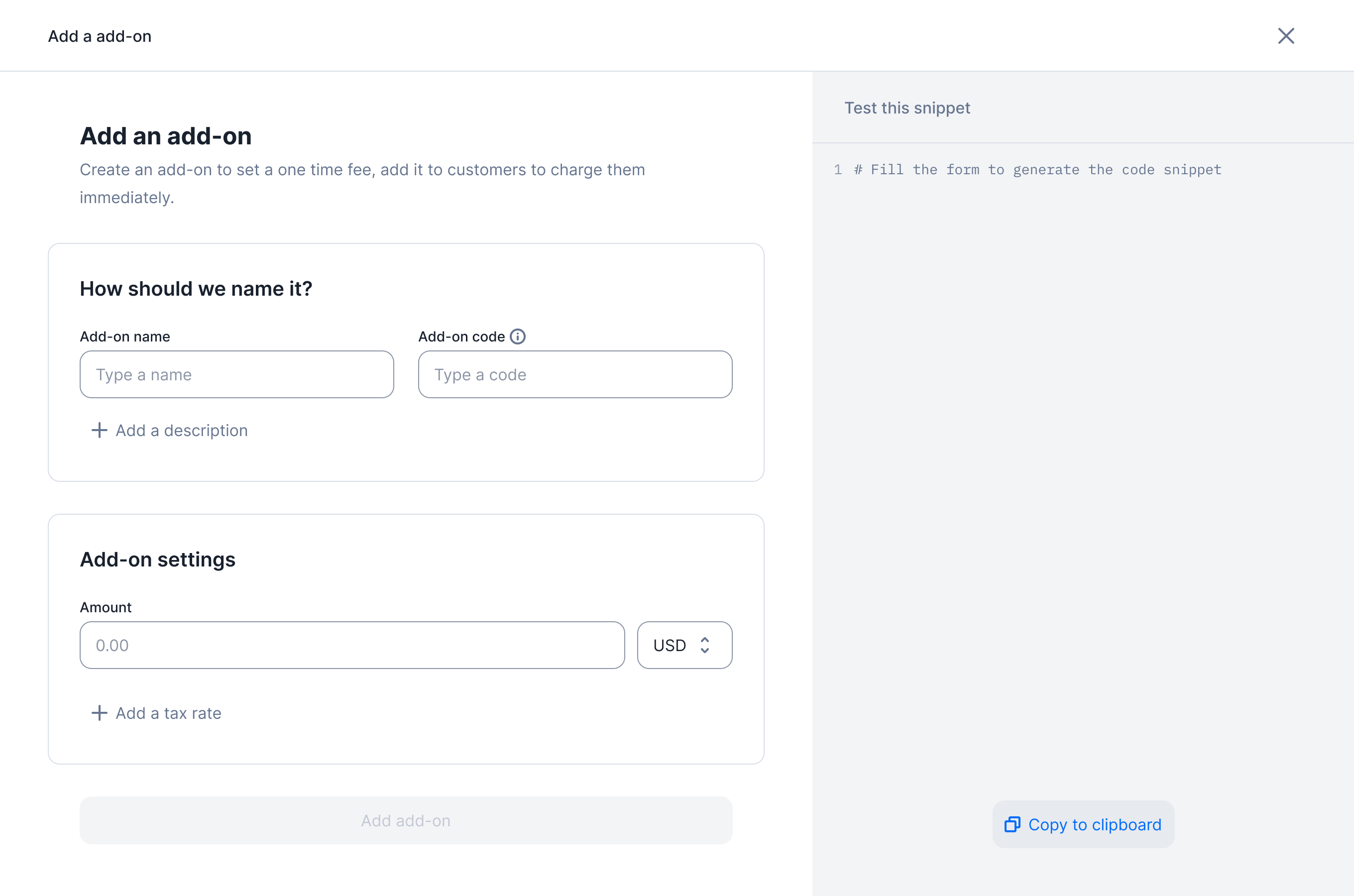
### At the add-on level
1. Make sure taxes are set up in your account
2. Go to **Add-ons** > **Add an add-on**
3. In the add-on settings, click **Add a tax rate**
4. Complete creation and apply to customers via one-off invoices
 ```bash theme={"dark"}
# Add tax to an add-on
{
"add_on": {
"name": "Setup fee",
"code": "setup_fee",
"amount_cents": 100000,
"amount_currency": "USD",
"tax_codes": ["french_standard_vat"]
}
}
```
Tax rates defined at the add-on level can be overridden when creating a one-off invoice.
***
## Tax hierarchy
### For Subscription Invoices
When generating invoices for subscriptions, taxes are applied in the following order of priority:
1. **Billing entity** taxes apply to all invoice fees (subscriptions and charges)
2. **Customer** taxes override billing entity taxes
3. **Plan** taxes override customer taxes
4. **Charge**-level taxes override plan taxes, but only affect the specific charge
5. If the customer is linked to a **tax provider** (e.g., Anrok), the provider's calculation overrides all other tax levels
***
### For one-off invoices
For one-off invoices, the hierarchy is:
1. **Organization** taxes apply to all fees
2. **Customer** taxes override organization taxes
3. **Add-on** taxes override customer taxes for the add-on only
4. **Fee-level** taxes (set at invoice creation) override add-on-level taxes for the specific fee
***
### For prepaid credit invoices
Prepaid credits are considered upfront payments. Therefore, invoices for credit purchases do **not** include any tax.
***
## Auto-detect european taxes with Lago
Lago supports automatic tax detection for European customers.\
Refer to our [integration guide](/integrations/taxes/lago-eu-taxes) to set it up.
```bash theme={"dark"}
# Add tax to an add-on
{
"add_on": {
"name": "Setup fee",
"code": "setup_fee",
"amount_cents": 100000,
"amount_currency": "USD",
"tax_codes": ["french_standard_vat"]
}
}
```
Tax rates defined at the add-on level can be overridden when creating a one-off invoice.
***
## Tax hierarchy
### For Subscription Invoices
When generating invoices for subscriptions, taxes are applied in the following order of priority:
1. **Billing entity** taxes apply to all invoice fees (subscriptions and charges)
2. **Customer** taxes override billing entity taxes
3. **Plan** taxes override customer taxes
4. **Charge**-level taxes override plan taxes, but only affect the specific charge
5. If the customer is linked to a **tax provider** (e.g., Anrok), the provider's calculation overrides all other tax levels
***
### For one-off invoices
For one-off invoices, the hierarchy is:
1. **Organization** taxes apply to all fees
2. **Customer** taxes override organization taxes
3. **Add-on** taxes override customer taxes for the add-on only
4. **Fee-level** taxes (set at invoice creation) override add-on-level taxes for the specific fee
***
### For prepaid credit invoices
Prepaid credits are considered upfront payments. Therefore, invoices for credit purchases do **not** include any tax.
***
## Auto-detect european taxes with Lago
Lago supports automatic tax detection for European customers.\
Refer to our [integration guide](/integrations/taxes/lago-eu-taxes) to set it up.