> ## Documentation Index
> Fetch the complete documentation index at: https://docs.getlago.com/llms.txt
> Use this file to discover all available pages before exploring further.
# N8N
Here is a typical use case of using Lago and N8N to create powerful alerting automation.
## Overconsumption Alerting Example (with N8N)
When one of your customers is overconsuming during a period, you might need to warn her. This might happen for Cloud or API products. Automatic billing does not mean that your customers should have a bad surprise when opening their invoices.
Here is a full workflow to create an alerting system based on your customers' current usage, using [N8N](https://n8n.io/), a powerful automation tool for developers.
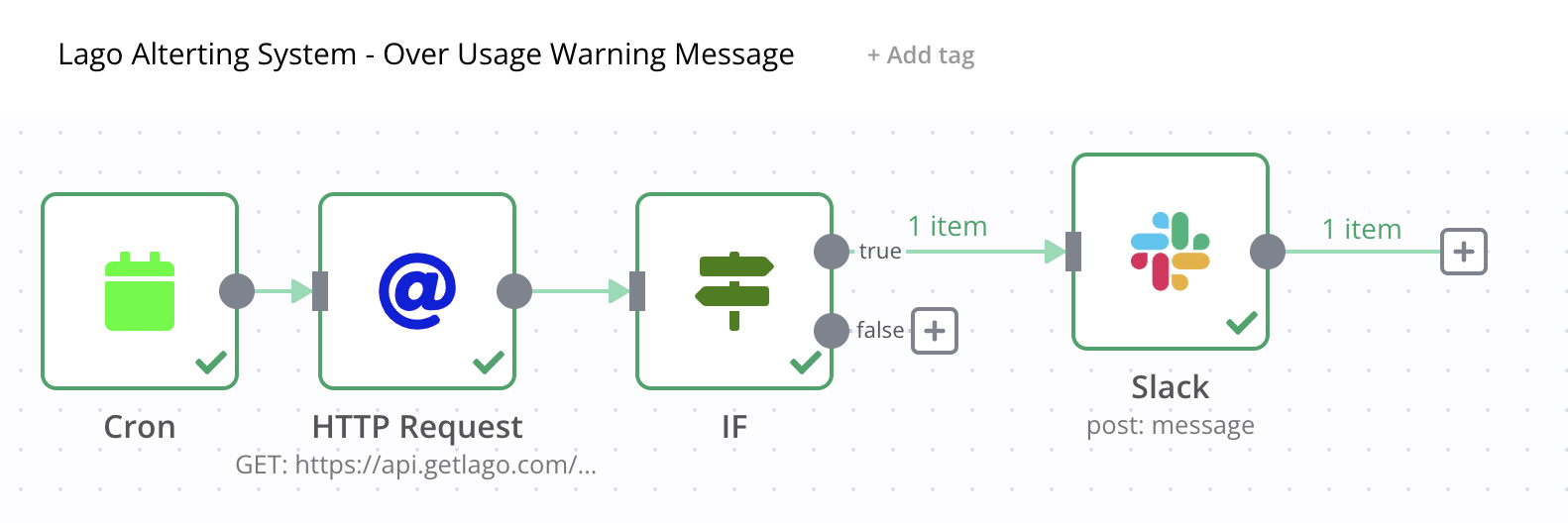 In this example, we are going to build an alert anytime a usage threshold is overcome. Here is a summary of this workflow:
1. Use a **Cron** expression to call the Lago API every X minutes/hours/days
2. Call the [**Current usage**](/api-reference/customer-usage/get-current) endpoint available in Lago to fetch your customers' current usage;
3. Create a **IF statement** to condition the trigger (in our case, messages are triggered above a specific overconsumption); and
4. **Send a message** whenever this threshold is reached. You could use an emailing tool, Slack or a CRM. In our case, we are using Slack.
## 1st Node - CRON expression to repeat tasks at a defined interval
The first node is repeatedly and automatically triggering the automation at a defined interval.
1. Add a new **Node**;
2. Select **CRON** as a new application node;
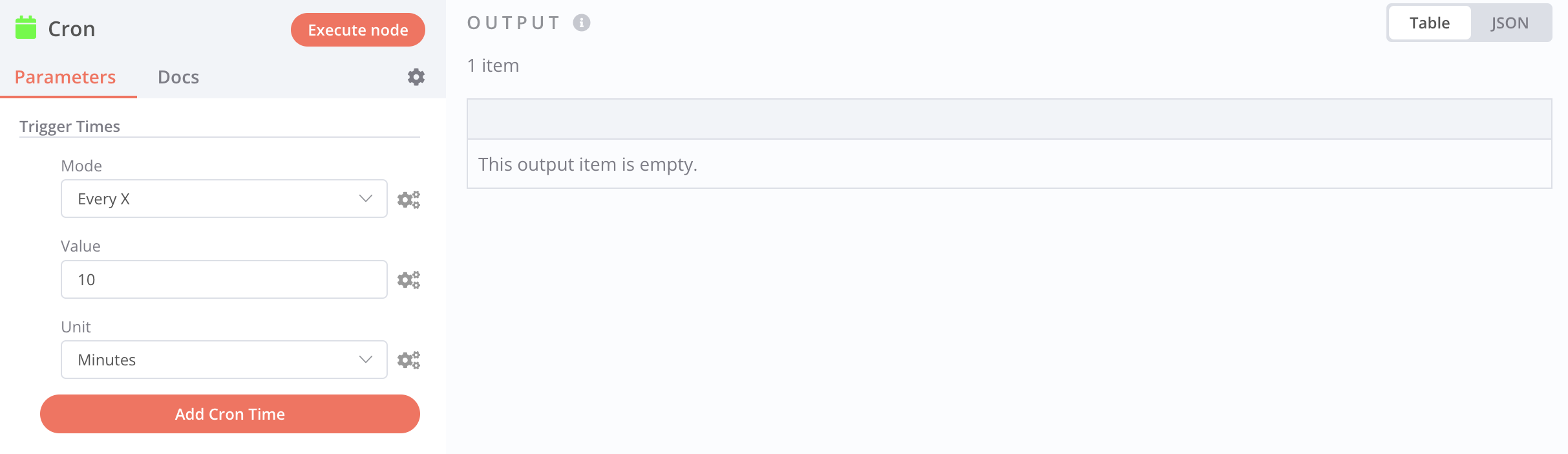
3. The **Mode** is set to `Every X`; and
4. The **Value** is defined to `10` and the the **Units** to `minutes`.
This will trigger the flow automatically every 10 minutes. You can obviously change the value and the units to your preferred interval.
In this example, we are going to build an alert anytime a usage threshold is overcome. Here is a summary of this workflow:
1. Use a **Cron** expression to call the Lago API every X minutes/hours/days
2. Call the [**Current usage**](/api-reference/customer-usage/get-current) endpoint available in Lago to fetch your customers' current usage;
3. Create a **IF statement** to condition the trigger (in our case, messages are triggered above a specific overconsumption); and
4. **Send a message** whenever this threshold is reached. You could use an emailing tool, Slack or a CRM. In our case, we are using Slack.
## 1st Node - CRON expression to repeat tasks at a defined interval
The first node is repeatedly and automatically triggering the automation at a defined interval.
1. Add a new **Node**;
2. Select **CRON** as a new application node;
3. The **Mode** is set to `Every X`; and
4. The **Value** is defined to `10` and the the **Units** to `minutes`.
This will trigger the flow automatically every 10 minutes. You can obviously change the value and the units to your preferred interval.
 ## 2nd Node - Catch customers' current usage with a HTTP Request
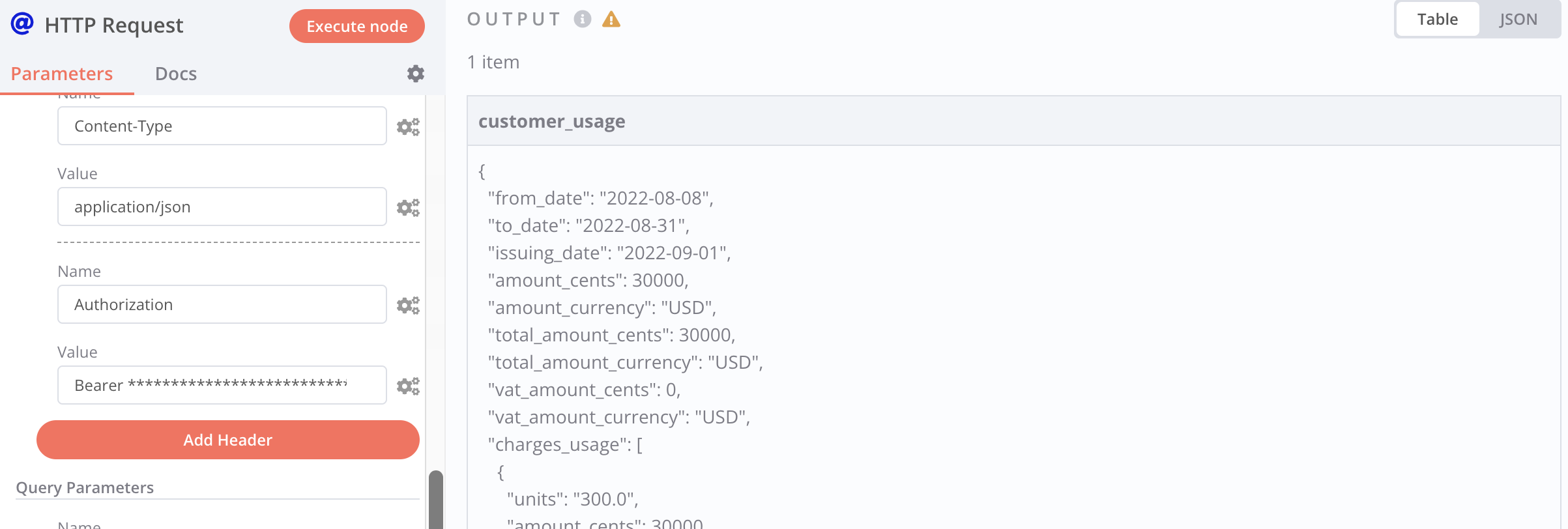
This node is used to fetch current usage from Lago API, using a HTTP request.
1. Add a new **Node**;
2. Select **HTTP Request** as a new application node;
3. Fetch [customers' current usage](/api-reference/customer-usage/get-current) from Lago API;
4. Make sure to set the `API_KEY` and the `Content-Type` as headers of your request; and
5. Execute the node to fetch the payload from Lago's API.
## 2nd Node - Catch customers' current usage with a HTTP Request
This node is used to fetch current usage from Lago API, using a HTTP request.
1. Add a new **Node**;
2. Select **HTTP Request** as a new application node;
3. Fetch [customers' current usage](/api-reference/customer-usage/get-current) from Lago API;
4. Make sure to set the `API_KEY` and the `Content-Type` as headers of your request; and
5. Execute the node to fetch the payload from Lago's API.
 ## 3rd Node - IF conditional statement to trigger messages under conditions
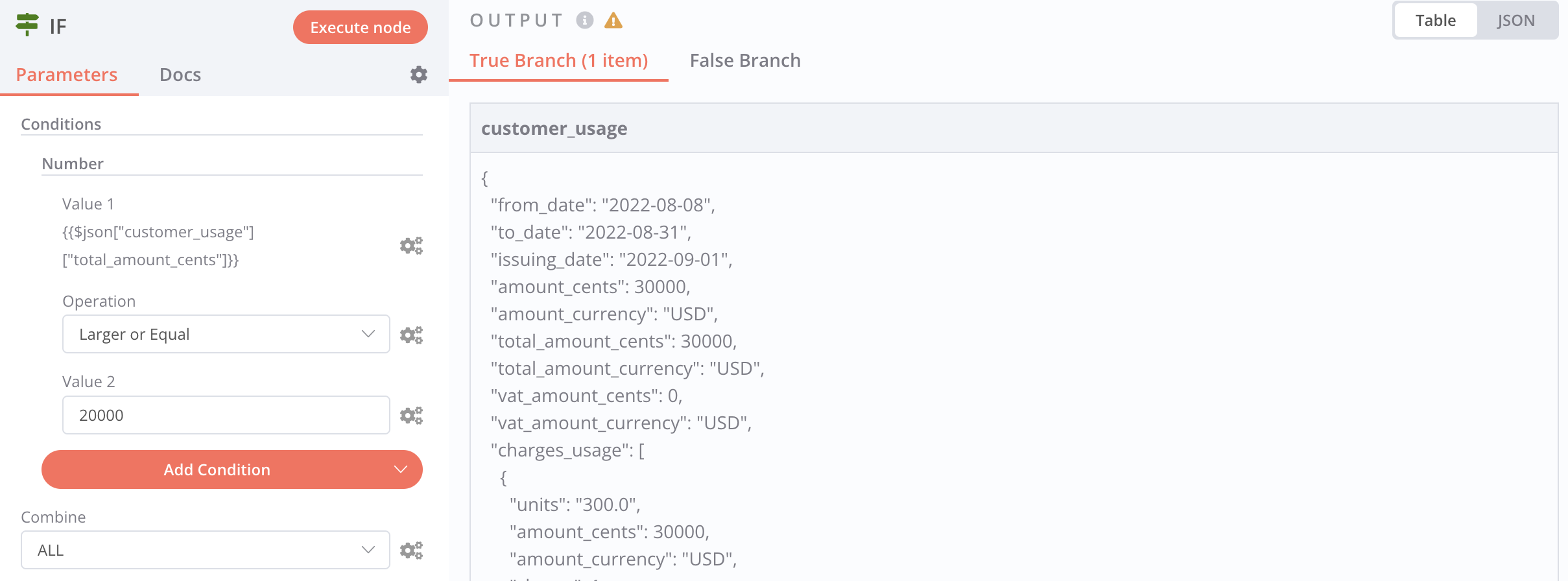
This node is used to trigger the alert only when your customers overcome a threshold of usage. Those limits depend on your product and your paying features.
In our present use case, we want to trigger an alert **when the total consumption of usage-based features overcomes \$200**. You could also use the `number of units` consumed or another useful value from the payload.
1. Add a new **Node**;
2. Select **IF** as a new application node;
3. Create a condition for the **TRUE** branch (when conditions are met);
4. The **Value** is the parameter of your condition (in our case the `amount_cents` of the current usage);
5. The **Operation** is the math operation you want to apply (in our case, condition is met when the total `amount_cents` is larger or equal to \$200);
It is important to mention that:
* You can add as many conditions as you need;
* You could add an action when the condition is `FALSE`.
## 3rd Node - IF conditional statement to trigger messages under conditions
This node is used to trigger the alert only when your customers overcome a threshold of usage. Those limits depend on your product and your paying features.
In our present use case, we want to trigger an alert **when the total consumption of usage-based features overcomes \$200**. You could also use the `number of units` consumed or another useful value from the payload.
1. Add a new **Node**;
2. Select **IF** as a new application node;
3. Create a condition for the **TRUE** branch (when conditions are met);
4. The **Value** is the parameter of your condition (in our case the `amount_cents` of the current usage);
5. The **Operation** is the math operation you want to apply (in our case, condition is met when the total `amount_cents` is larger or equal to \$200);
It is important to mention that:
* You can add as many conditions as you need;
* You could add an action when the condition is `FALSE`.
 ## 4th Node - Send an alert message to Slack
This last node is used to trigger the message. In the example, we use a Slack channel, but you could even decide to send an email directly to your customers when they pass the limits of usage.
1. Add a new **Node**;
2. Select **Slack** as a new application node;
3. Select the targeted **Slack Account** & **Slack Channel**;
4. Choose the option to **POST** a **Message**; and
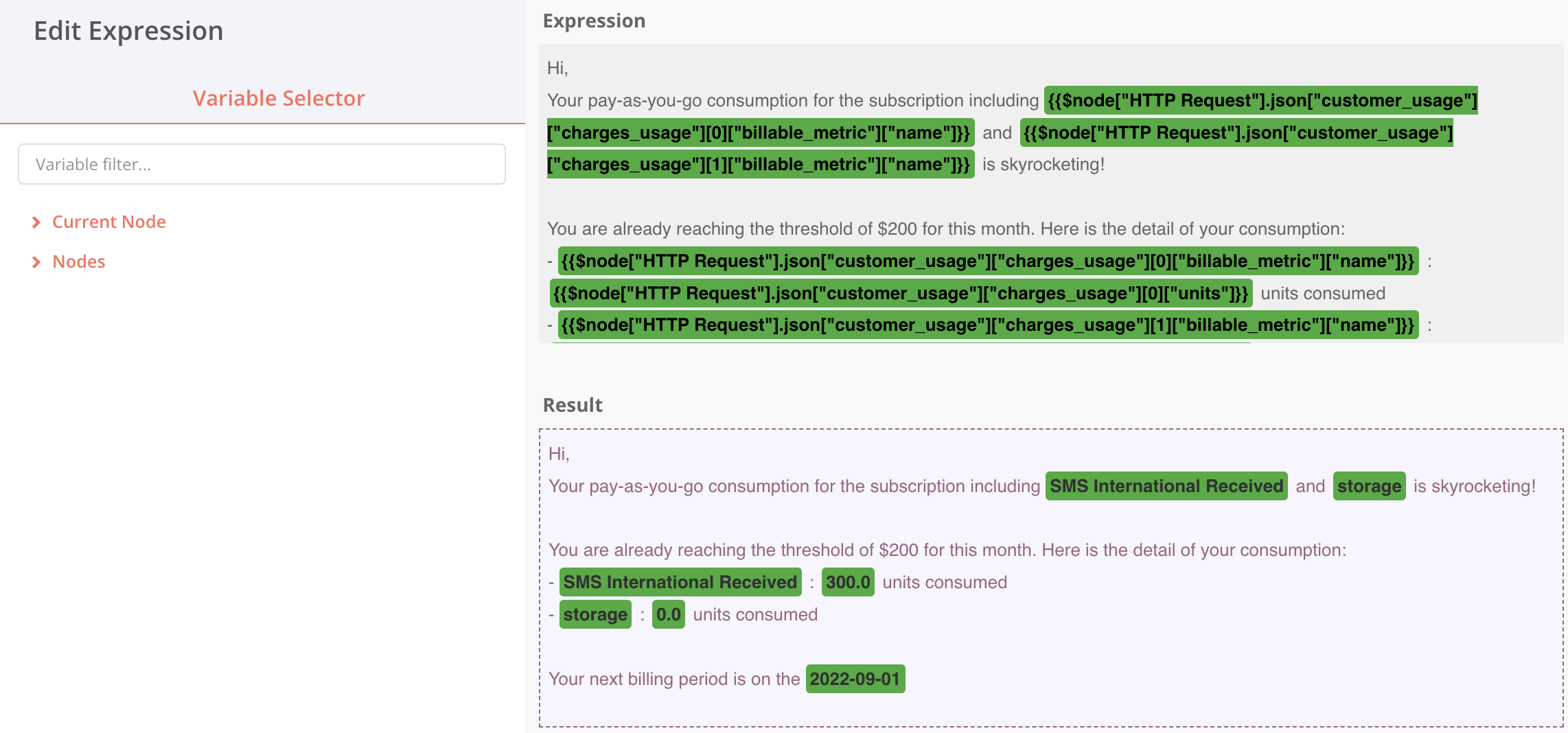
5. **Define a message** and use the variables of your payload to give context to your customers about their current usage.
On top of connecting your Slack account, don't forget to authorize the application's bot to post messages to the targeted channel.
## 4th Node - Send an alert message to Slack
This last node is used to trigger the message. In the example, we use a Slack channel, but you could even decide to send an email directly to your customers when they pass the limits of usage.
1. Add a new **Node**;
2. Select **Slack** as a new application node;
3. Select the targeted **Slack Account** & **Slack Channel**;
4. Choose the option to **POST** a **Message**; and
5. **Define a message** and use the variables of your payload to give context to your customers about their current usage.
On top of connecting your Slack account, don't forget to authorize the application's bot to post messages to the targeted channel.