> ## Documentation Index
> Fetch the complete documentation index at: https://docs.getlago.com/llms.txt
> Use this file to discover all available pages before exploring further.
# Salesforce CPQ
> Lago syncs billing data to Salesforce in real-time.
**PREMIUM ADD-ON** ✨
This integration is only available to users with a specific paying add-on. Please
**[contact us](mailto:hello@getlago.com)** to get access to Salesforce CPQ integration.
This is extension package of the base package: Lago for Salesforce CRM. Base package must be installed to install CPQ package.
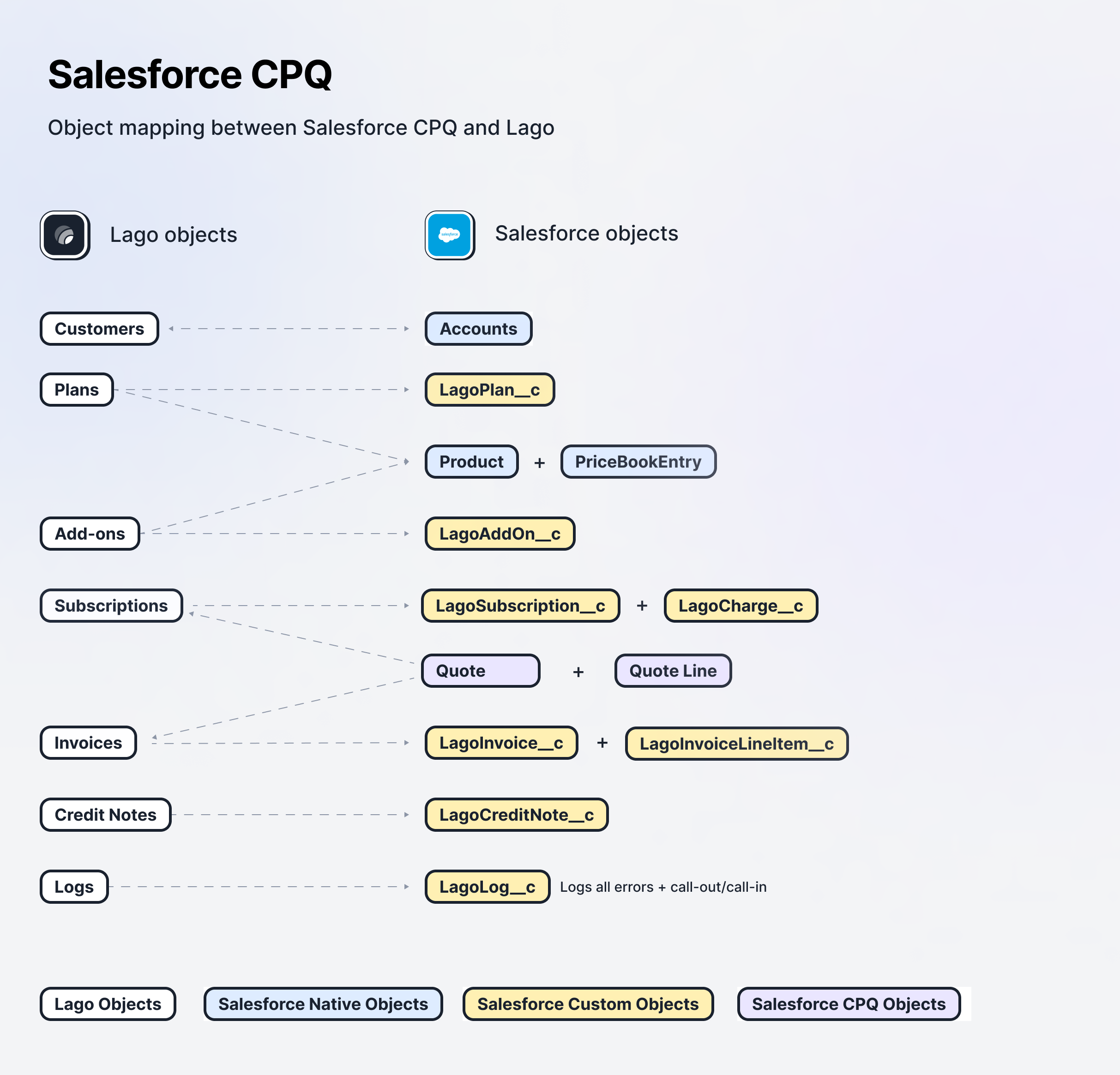
## Object mapping
 ## Pre-requisite:
* Salesforce CPQ (> Summer '19)
* Install Lago For Salesforce CRM Package [Lago Base Package](/integrations/crm/salesforce-crm)
## I. Integration configuration
### Install Salesforce CRM Package and complete Integration configuration step
* [Integration configuration ](/integrations/crm/salesforce-crm#install-salesforce-crm-package)
* [Establish and finalize connection](/integrations/crm/salesforce-crm#establish-and-finalize-connection)
### Install Salesforce CPQ Package
To gain premium access to our Salesforce Package application, please don't hesitate to contact us.
You can initiate the installation process **by clicking on the provided link**, which will direct you to the installation
page where you can follow step-by-step instructions for a seamless integration. If you have any questions or need assistance
during the installation, our dedicated support team is here to help you every step of the way.
## Pre-requisite:
* Salesforce CPQ (> Summer '19)
* Install Lago For Salesforce CRM Package [Lago Base Package](/integrations/crm/salesforce-crm)
## I. Integration configuration
### Install Salesforce CRM Package and complete Integration configuration step
* [Integration configuration ](/integrations/crm/salesforce-crm#install-salesforce-crm-package)
* [Establish and finalize connection](/integrations/crm/salesforce-crm#establish-and-finalize-connection)
### Install Salesforce CPQ Package
To gain premium access to our Salesforce Package application, please don't hesitate to contact us.
You can initiate the installation process **by clicking on the provided link**, which will direct you to the installation
page where you can follow step-by-step instructions for a seamless integration. If you have any questions or need assistance
during the installation, our dedicated support team is here to help you every step of the way.
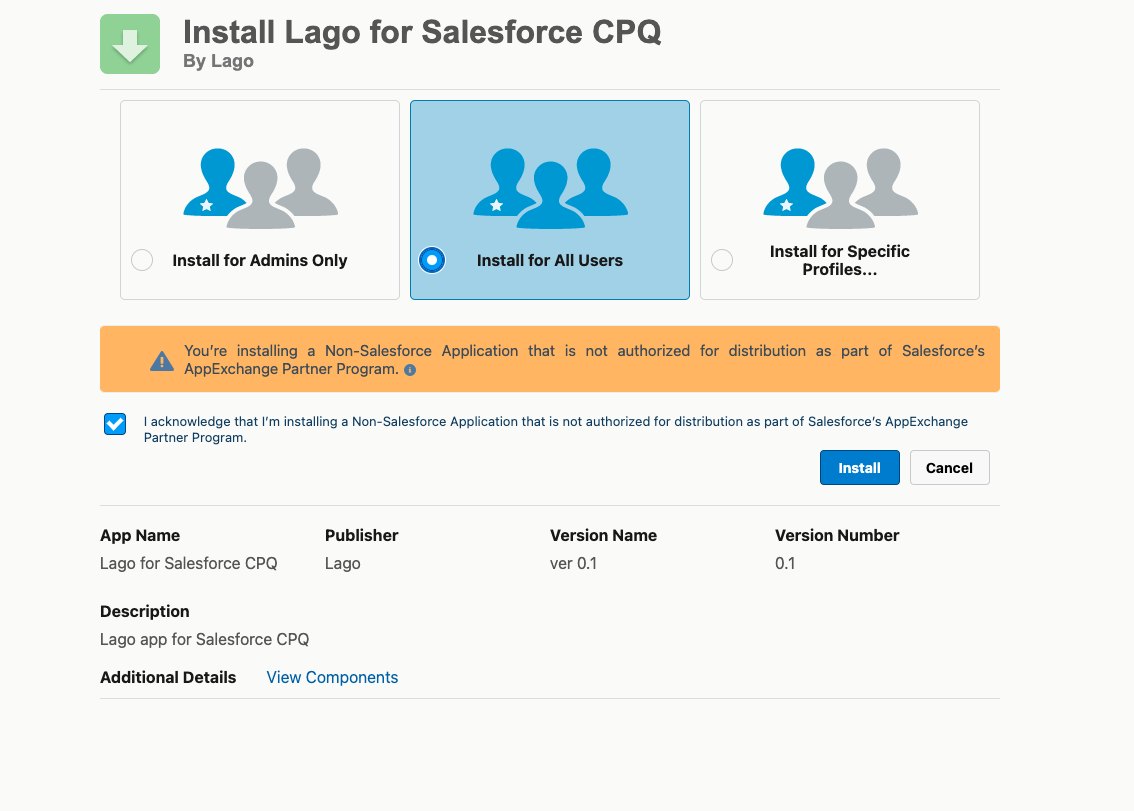 To ensure a successful installation, please follow these steps:
1. We recommend selecting the **"Install for all users"** option;
2. Click on the **"Install" button**;
3. Make sure to **check the box to grant access to these third-party websites**; and
4. Once completed, you'll have **successfully installed** the Lago Salesforce App.
Please note that the installation process may take a few minutes to complete.
However, rest assured that you will receive an email confirmation once the installation is finished.
*
## II. Configuration to sync data
### Assign Permission:
Assign `Lago CPQ Permission` to users who needs to access Lago for Salesforce CPQ.
### Include Lago Fields in 'Quote Line Items editor' layout
Update the "Edit Line" which is available in Quote Layout to enter the details related to lago fieds in QuoteLine by following below steps:
1. Go to Setup
2. Click on Object manager
3. Go to `Quote Line` object
4. Click on \`field sets.
5. Select edit 'Line Editor\` field set.
6 Make sure following fields are available in field set:
* Lago Name
* Lago External Id
* Lago Billing Time
* Lago Start Date
* Lago End Date
## III. Actions from Salesforce to Lago
Beyond just syncing data from Lago to Salesforce, you can also initiate actions in Lago directly from Salesforce.
You can leverage Salesforce `Flows` to execute actions in Lago. Lago provides customizable templates for creating subscription from Salesforce Accounts, directly assigning subscriptions to customers from Salesforce, creating one-off invoice from salesforce.
### Create customers [from Lago to Salesforce CRM](/integrations/crm/salesforce-crm#flow-lago-template-create-customer-in-lago-on-account-create)
### Create subscriptions (automation)
Assigning a plan to a customer, adjusting negotiated prices, and initiating the subscription upon accepting a quote represents a key action from Salesforce to Lago.
To assign a subscription and set prices in Lago directly from Salesforce, use the provided two flows via following Lago Flow templates.
#### Flow 1: `LagoCPQ Template - Quote Line After Insert`
This Flow is used to update Subscription External Id if it is null
1. Log into your Salesforce instance;
2. Access the Setup section via the settings gear icon in Salesforce;
3. Find and select `Flows` under Process Automation in the sidebar;
4. Locate and open the `LagoCPQ Template - Quote Line After Insert`;
5. Click 'Save As' to create and save your own version of the template; and
6. Do not forget to click the `Activate` button to activate your flow.
The default setting triggers plan assignment when Lago subscription external id is null You can customize this flow to suit your specific needs.
#### Flow 2: Pre-requisite from Lago to Salesforce CRM package: `Lago Template - Create Subscription in Lago on Subscription Creation/Update`
This Flow is used to create subscriptions in Lago from Salesforce
1. Log into your Salesforce instance;
2. Access the Setup section via the settings gear icon in Salesforce;
3. Find and select `Flows` under Process Automation in the sidebar;
4. Locate and open the `Lago Template - Create Subscription in Lago on Subscription Creation/Update`;
5. Click 'Save As' to create and save your own version of the template; and
6. Do not forget to click the `Activate` button to activate your flow.
The default setting triggers plan assignment when `SyncToLago` checkbox is checked. You can customize this flow to suit your specific needs.
#### Flow 3: `LagoCPQ Template - Create Lago SObject Records Using Quotes`
This Flow is used to create Lago subscriptions records in Salesforce when Quote status is changed to Approved
1. Log into your Salesforce instance;
2. Access the Setup section via the settings gear icon in Salesforce;
3. Find and select `Flows` under Process Automation in the sidebar;
4. Locate and open the `LagoCPQ Template - Create Lago SObject Records Using Quotes`;
5. Click 'Save As' to create and save your own version of the template; and
6. Do not forget to click the `Activate` button to activate your flow.
The default setting triggers plan assignment when Quote status is changed to Approved. You can customize this flow to suit your specific needs.
### Terminate Subscription
We can terminate the subscription from Salesforce to lago only if the subscription is already synced to lago(status is *active* or *pending*).
Go to Lago Subscription record in Salesforce, and check `Terminate Subscription` checkbox.
As soon as `Terminate Subscription` is checked it will terminate the subscription in Lago. It is handled from the backend via trigger.
## Debugging & logs
To ensure seamless data synchronization between Lago and Salesforce, every action and data transfer is meticulously logged.
These logs are accessible directly through the Lago package for comprehensive debugging and analysis:
1. Navigate to 'Lago Base Configuration': This is your starting point for accessing the debugging tools. and
2. Access Logs: Click on the 'Logs' tab to view a detailed record of all activities.
You can refresh logs to keep your data current or delete unnecessary logs to maintain clarity and efficiency in the debugging process.
This approach aids in promptly identifying and resolving integration issues.
To ensure a successful installation, please follow these steps:
1. We recommend selecting the **"Install for all users"** option;
2. Click on the **"Install" button**;
3. Make sure to **check the box to grant access to these third-party websites**; and
4. Once completed, you'll have **successfully installed** the Lago Salesforce App.
Please note that the installation process may take a few minutes to complete.
However, rest assured that you will receive an email confirmation once the installation is finished.
*
## II. Configuration to sync data
### Assign Permission:
Assign `Lago CPQ Permission` to users who needs to access Lago for Salesforce CPQ.
### Include Lago Fields in 'Quote Line Items editor' layout
Update the "Edit Line" which is available in Quote Layout to enter the details related to lago fieds in QuoteLine by following below steps:
1. Go to Setup
2. Click on Object manager
3. Go to `Quote Line` object
4. Click on \`field sets.
5. Select edit 'Line Editor\` field set.
6 Make sure following fields are available in field set:
* Lago Name
* Lago External Id
* Lago Billing Time
* Lago Start Date
* Lago End Date
## III. Actions from Salesforce to Lago
Beyond just syncing data from Lago to Salesforce, you can also initiate actions in Lago directly from Salesforce.
You can leverage Salesforce `Flows` to execute actions in Lago. Lago provides customizable templates for creating subscription from Salesforce Accounts, directly assigning subscriptions to customers from Salesforce, creating one-off invoice from salesforce.
### Create customers [from Lago to Salesforce CRM](/integrations/crm/salesforce-crm#flow-lago-template-create-customer-in-lago-on-account-create)
### Create subscriptions (automation)
Assigning a plan to a customer, adjusting negotiated prices, and initiating the subscription upon accepting a quote represents a key action from Salesforce to Lago.
To assign a subscription and set prices in Lago directly from Salesforce, use the provided two flows via following Lago Flow templates.
#### Flow 1: `LagoCPQ Template - Quote Line After Insert`
This Flow is used to update Subscription External Id if it is null
1. Log into your Salesforce instance;
2. Access the Setup section via the settings gear icon in Salesforce;
3. Find and select `Flows` under Process Automation in the sidebar;
4. Locate and open the `LagoCPQ Template - Quote Line After Insert`;
5. Click 'Save As' to create and save your own version of the template; and
6. Do not forget to click the `Activate` button to activate your flow.
The default setting triggers plan assignment when Lago subscription external id is null You can customize this flow to suit your specific needs.
#### Flow 2: Pre-requisite from Lago to Salesforce CRM package: `Lago Template - Create Subscription in Lago on Subscription Creation/Update`
This Flow is used to create subscriptions in Lago from Salesforce
1. Log into your Salesforce instance;
2. Access the Setup section via the settings gear icon in Salesforce;
3. Find and select `Flows` under Process Automation in the sidebar;
4. Locate and open the `Lago Template - Create Subscription in Lago on Subscription Creation/Update`;
5. Click 'Save As' to create and save your own version of the template; and
6. Do not forget to click the `Activate` button to activate your flow.
The default setting triggers plan assignment when `SyncToLago` checkbox is checked. You can customize this flow to suit your specific needs.
#### Flow 3: `LagoCPQ Template - Create Lago SObject Records Using Quotes`
This Flow is used to create Lago subscriptions records in Salesforce when Quote status is changed to Approved
1. Log into your Salesforce instance;
2. Access the Setup section via the settings gear icon in Salesforce;
3. Find and select `Flows` under Process Automation in the sidebar;
4. Locate and open the `LagoCPQ Template - Create Lago SObject Records Using Quotes`;
5. Click 'Save As' to create and save your own version of the template; and
6. Do not forget to click the `Activate` button to activate your flow.
The default setting triggers plan assignment when Quote status is changed to Approved. You can customize this flow to suit your specific needs.
### Terminate Subscription
We can terminate the subscription from Salesforce to lago only if the subscription is already synced to lago(status is *active* or *pending*).
Go to Lago Subscription record in Salesforce, and check `Terminate Subscription` checkbox.
As soon as `Terminate Subscription` is checked it will terminate the subscription in Lago. It is handled from the backend via trigger.
## Debugging & logs
To ensure seamless data synchronization between Lago and Salesforce, every action and data transfer is meticulously logged.
These logs are accessible directly through the Lago package for comprehensive debugging and analysis:
1. Navigate to 'Lago Base Configuration': This is your starting point for accessing the debugging tools. and
2. Access Logs: Click on the 'Logs' tab to view a detailed record of all activities.
You can refresh logs to keep your data current or delete unnecessary logs to maintain clarity and efficiency in the debugging process.
This approach aids in promptly identifying and resolving integration issues.