

Overview
The AI Finance Assistant answers questions about your billing data in plain language. Ask what you want to know, and Lago returns an aggregated report. No filters to build, no dashboard to configure, no SQL to write. Ask “What was my MRR by plan last quarter?” or “How much did EU customers pay in June?” and the assistant reads your data and returns the numbers.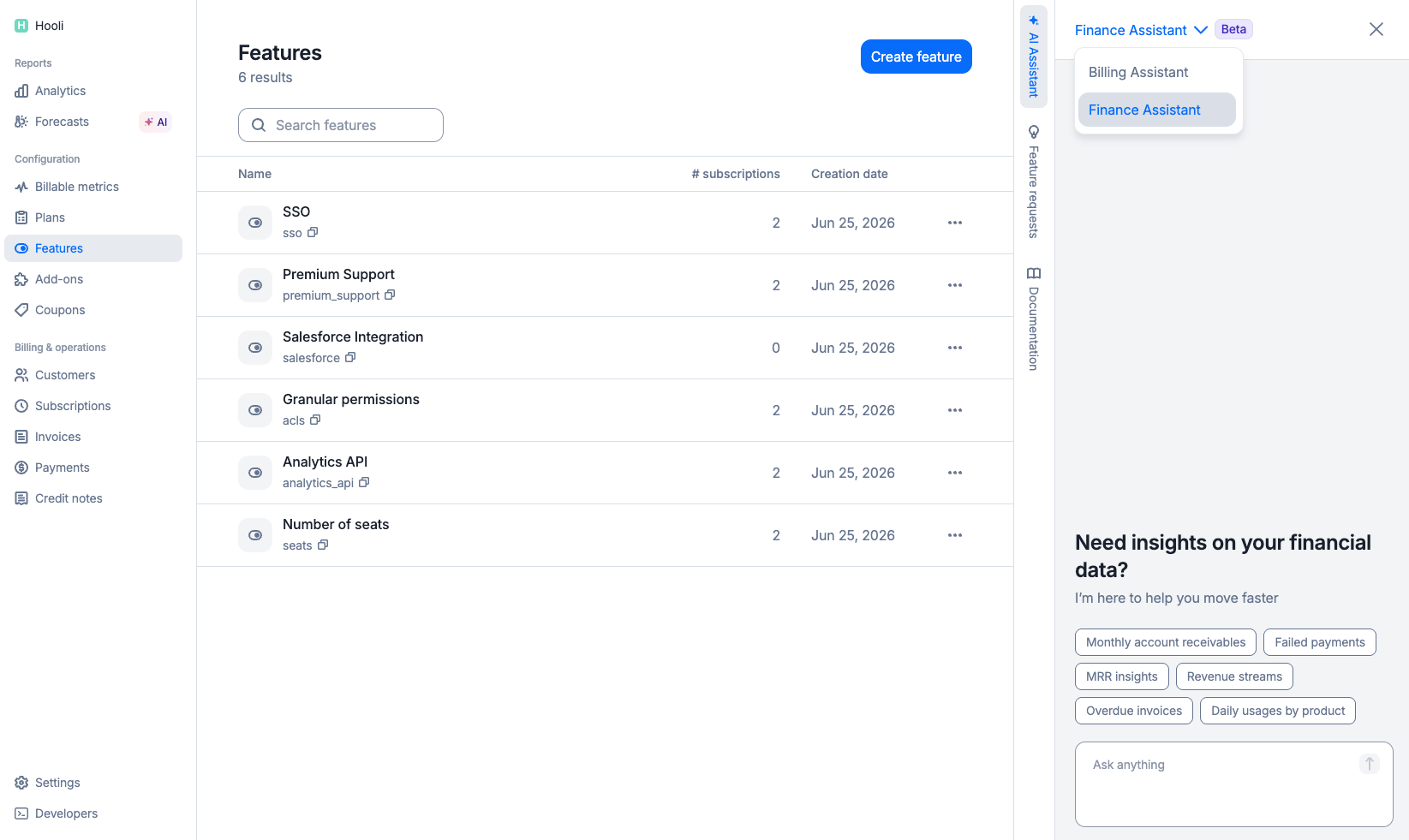
AI Finance Assistant
AI-generated results ✨The assistant is powered by AI. It can make mistakes. Treat every report as a draft worth reviewing, not a final source of truth. Confirm the numbers against your dashboards or the API before you act on them or share them.
What it does
- Plain-text questions: Describe what you want in your own words. No query language, no report builder.
- Aggregated reports: The assistant computes the answer across your data and returns totals, breakdowns, and trends.
- Read-only: The Finance Assistant reports on your data. It does not create, update, or delete anything. For operations and mutations, use the Billing Assistant.
- Preview then export: In the app, the result is a preview of the underlying data. Export the full CSV when you need the complete dataset.
How to access it
You can reach the AI Finance Assistant two ways.1
From the side panel
Open the AI Finance Assistant in the Lago side panel. Type your question and read the report inline.
2
Through the MCP server
Connect the Lago MCP Server to your AI client (Claude Desktop, your own agent, or any MCP-compatible tool) and ask the same questions there. Same data, in the environment you already work in.
Ask a question
1
Open the assistant
Select AI Finance Assistant in the side panel, or query it through the MCP server.
2
Ask in plain text
Type any question about your billing, revenue, or usage data.
3
Read the report
The assistant returns an aggregated report. In the app, this is a preview of the data.
4
Review and confirm
Check the numbers. Results are AI-generated and worth confirming before you rely on them.
5
Export the full CSV
Need the complete dataset? Export it as CSV directly from the result.
Example questions
Revenue
Revenue
- “What was my MRR last month, broken down by plan?”
- “How much revenue did I recognize in Q2?”
- “Which customers grew the most in the last 90 days?”
- “Compare this month’s revenue to the same month last year.”
Invoices and payments
Invoices and payments
- “What’s the total value of overdue invoices right now?”
- “How much did I collect in June, by currency?”
- “Show me the failed payment amount for the last 30 days.”
Usage
Usage
- “What’s the total metered usage per billable metric this quarter?”
- “Which customers consumed the most credits last month?”
- “How is usage trending across my top 10 customers?”
Customers
Customers
- “How many active subscriptions do I have by plan?”
- “What’s the average invoice value for US customers?”
- “List my top customers by lifetime billed amount.”
Preview and export
In the Lago app, every answer is a preview of the underlying data. It shows enough to read the result and sanity-check it at a glance. When you need every row, export the full CSV and take it into your spreadsheet, BI tool, or reconciliation workflow.Non-destructive by design
The Finance Assistant only reads. It queries your billing data, interprets it, and returns a report. That is all it can do. It cannot create, update, or delete anything: no invoices, no subscriptions, no customers, no payments. There is no confirmation step to worry about because there is no action to confirm. Use it for data and reporting only. To change something in natural language, use the Billing Assistant. It can perform destructive actions, such as terminating subscriptions or issuing refunds.Access and permissions
Gate access at the assistant level, in each user’s permissions, not through role-based data restrictions that the assistant does not enforce.Limitations
- Reports are point-in-time. Each answer reflects your data at the moment you ask. Ask the same question tomorrow and the numbers can differ as your data changes.
- You cannot save reports yet. There is no way to store or pin a report inside the assistant. To keep a result, export the CSV while it is on screen. A report you do not export is not retained.
Good to know
- Results are AI-generated. They can be wrong. Review before you rely on them, and cross-check against your Analytics dashboards or the API for anything you report externally.
- Read-only by design. The Finance Assistant never changes your data. Use the Billing Assistant for actions.
- Be specific. “MRR by plan for Q2 2026” returns a sharper report than “show me revenue.” Include timeframes, currencies, and dimensions when they matter.
Related
- Analytics: prebuilt finance and usage dashboards.
- Billing Assistant: run billing operations in natural language.
- Lago MCP Server: connect Lago data to any AI client.