

PREMIUM ADD-ON ✨RBAC is only available to licensed users. Please contact us to get access to this premium add-on.
System roles in Lago
System roles are predefined by Lago and define the access scope and permissions granted to users within the Lago platform. Lago provides three primary system roles:Admin role
Admins wield full control over Lago, managing billable metrics, plans, customers, subscriptions, settings or financial analysis. Typically, developers with admin roles handle all critical billing operations. By default, the account creator is assigned the Admin role.Account manager role
The Account manager role suits Sales or Customer Success Managers, enabling them to carry out billing tasks for customers. Account Managers can assign subscriptions, coupons, add-ons, and override prices but are not permitted to modify metrics or plans. Here is the full list of permissions for this pre-built role.Finance & analyst role
The Finance & analyst role is view-only, restricted from creating or editing metrics and plans, or assigning core billing actions such as coupons, subscriptions. It’s ideal for analyzing financial data, reviewing invoices, and issuing credit notes as necessary. Here is the full list of permissions for this pre-built role.Custom roles and permissions
PREMIUM ADD-ON ✨This add-on is available on demand only. Please contact us to get access to this premium add-on.
- Updating the permissions of a role automatically updates the permissions for all users assigned to that role; and
- At least one role with administrative permissions must always exist.
- Navigate to the Settings view in Lago;
- Access the Roles & Permissions section;
- Click on Create Role;
- Define the role
name,codeanddescription; - Select the desired permissions from the list;
- Save the new custom role; and
- Assign users to the newly created custom role.
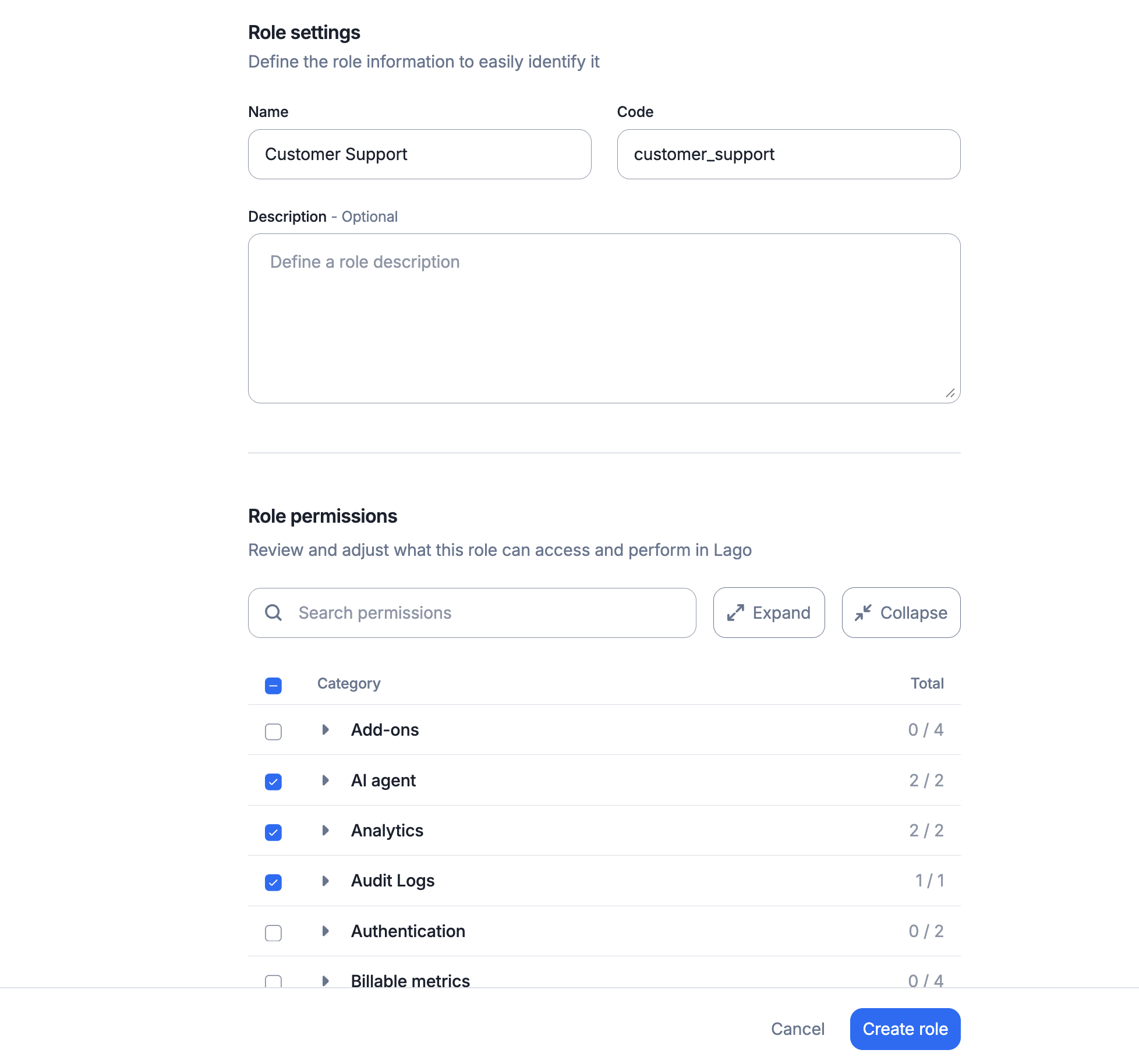
Create a custom role